

Two-factor authentication (2FA) adds an additional layer of security to your account by requiring more than just your password to log in. You will need to verify your email address before you can enable 2FA.
Verify your email address
Click on your profile icon in the top-right corner and select Security.
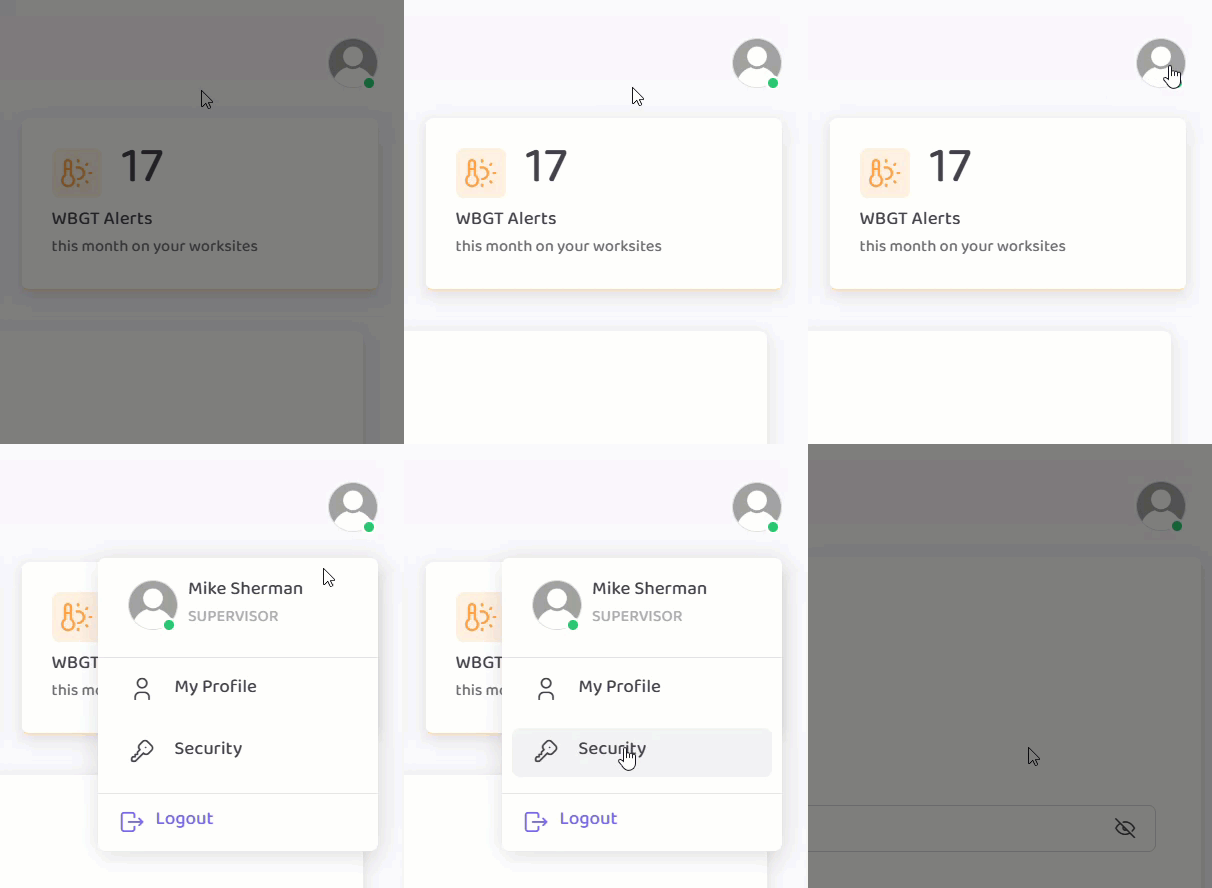
Scroll down to Email verification.
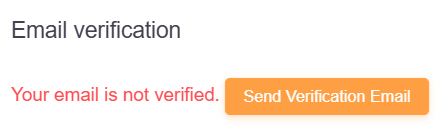
If your email address is already verified, skip to enable two-factor authentication (2FA). If your email address is not verified, click Send Verification Email.
Go to the email inbox associated with your Zelus Enterprise account and look for an email with the subject "Verify your email for ZelusB2B".
Click the link in the email to verify your email address.
Return to the Zelus Enterprise web portal and refresh the page.
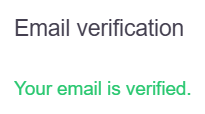
Under Email verification on the Security page, ensure your email is verified.
Enable two-factor authentication (2FA)
Scroll down to Two-step verification.
Click Enable Two-Factor Authentication.

Follow the steps on screen to enter your mobile number and select Submit.
Enter the verification code sent to your mobile.
